7 Unlucid AI Alternatives - Best Uncensored AI Video to Video
If you already use Unlucid AI, you know where it shines. Character Swap drops your own character into a video, Video AI animates a still from a motion prompt, and the effects menu covers Dance, Squish and Flying in one click.
The friction shows up somewhere else. A swap changes who is in the clip, not how the clip looks. It only uses a few seconds of your footage. And some new looks are easier to write in a sentence than to find in a menu. Below are the seven Unlucid AI alternatives I'd reach for instead, grouped by job: written restyles, preset restyles, style transfer, anime looks, recasts, VFX edits and portrait animation.
1. The Short Answer
Keep Unlucid AI for putting an original character into a trending clip or animating a single image. For changing how your own footage looks, my pick is Senzia: you upload a reference clip, write one line that names the new look, and the uncensored video to video generator returns a new video whose camera path and movement still follow what you shot. Directions some tools refuse still come back as a video, and the result plays beside your reference before you keep it. That is what uncensored AI video to video means here: your written scene stays the scene.
The rest of the list covers narrower jobs. DeeVid AI is the one for preset restyles with a strength slider. GoEnhance handles preset style transfer, DomoAI handles anime, and Mage recasts a clip with your own characters. invideo keeps VFX edits inside a full editor, and MakeFun turns a portrait into a dance clip.
2. All Seven Unlucid AI Alternatives Side by Side
|
Tool |
Pick It For |
The Reason to Switch From Unlucid AI |
|
Senzia |
One written line restyles your clip while its camera path and movement stay in charge | |
|
DeeVid AI |
Preset restyles with a strength slider |
Pick a style and set how strongly it covers the whole clip |
|
GoEnhance |
Preset style transfer |
Anime, clay, pixel and other presets on the subject alone or the whole scene |
|
DomoAI |
Anime restyles |
A deep anime library plus style from a text prompt or a reference image |
|
Mage |
Recasting a clip with your own characters |
Motion, camera and timing stay while characters, places or products change |
|
invideo |
VFX edits inside a full editor |
Restyle, relight, swap props and reframe in one editor project |
|
MakeFun |
Turning a portrait into a dance clip |
The motion of a reference video applied to a single portrait |
3. Where Unlucid AI Starts to Feel Tight
A swap is not a restyle
Unlucid's Character Swap guide describes a tool that puts the character from your image in place of the subject while the video keeps its motion and camera. That is a recast. When you want the same performer in a new setting, a new light or a new era, you need a restyle, ideally from an uncensored video to video AI tool that keeps the direction you write.
Only a few seconds of your footage
Character Swap uses 4 to 10 seconds of the video you upload. For animating stills, Unlucid's Video AI tips put the default clip at 5 seconds, with 7 or 10 seconds as the longer options. A take that runs longer has to be trimmed before it goes in.
A purchase before the first swap
The same guide prices Character Swap at 5 gems per second of video used and says it unlocks when you buy a gem bundle. You pay before you can judge whether the swap suits your clip.
If a written direction on your own footage is the missing piece, try a written restyle on your clip with Senzia.
3.1 Senzia — the Pick for Uncensored AI Video to Video
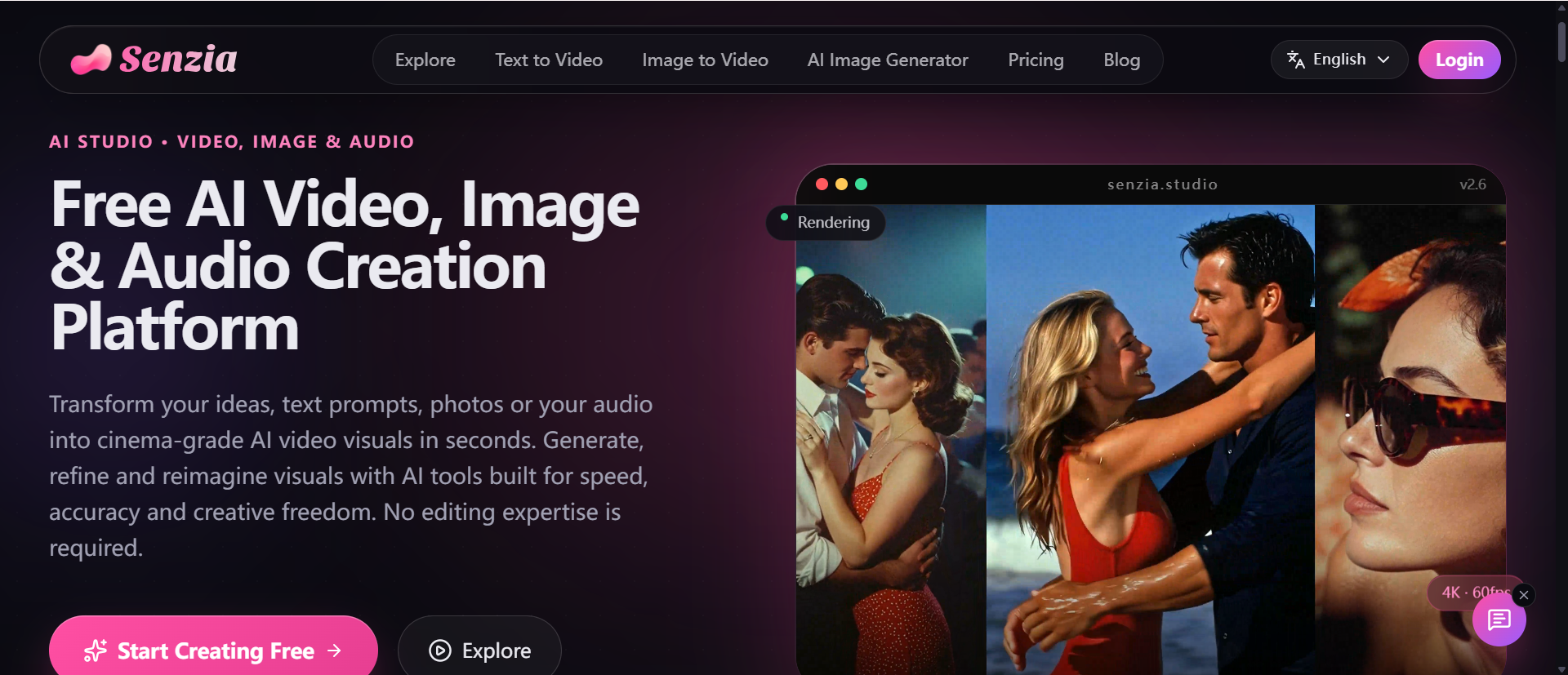
You add the footage whose movement the new video should follow, put the new look into one clear line, and the uncensored reference to video step treats your clip as the guide. Uncensored AI video transfer then applies that line. The camera path remains the lead, and the movement of the performance stays put while the surface of the shot changes.
That is the opposite end of the job from Unlucid AI. Unlucid swaps who is in the clip; Senzia keeps the performer and changes the world around them, which makes it the stronger Unlucid AI alternative when the scene should stay exactly as you wrote it.
The upload takes MP4 or MOV up to 15 seconds and 100MB, so a longer take fits without cutting it down to a swap window. You watch the result next to the reference and keep the take you approve, and an eligible plan removes the watermark. Each take carries its own brief, so you can turn video into another video uncensored for a second client delivery while the action stays the action you recorded. If a clip only needs a new look and no special direction, the standard video to video page uses the same three steps.
Where I'd use it: as an uncensored video to video AI tool for music videos with a locked performance, trailer beats that need another treatment, and signed commercial takes that need a different look for the next delivery.
What works
-
Your shot leads: the clip you supplied stays in front, and the line only redirects the look.
-
Directions that come back: a direction some tools stop on still returns as a video.
-
Side-by-side check: the new take plays beside the reference before you keep it.
What to watch
-
Footage first: it starts from a clip you already have; if you only hold a still, image to video comes first.
-
Write it clearly: a vague line gives a vague look, so name the setting, the light or the era.
Who it suits: music video directors, trailer editors and commercial directors who already have the footage.
The takeaway: when Unlucid AI would swap the character but you want the shot you filmed to stay in charge with a new look, go to Senzia.
3.2 DeeVid AI, for Preset Restyles With a Strength Slider
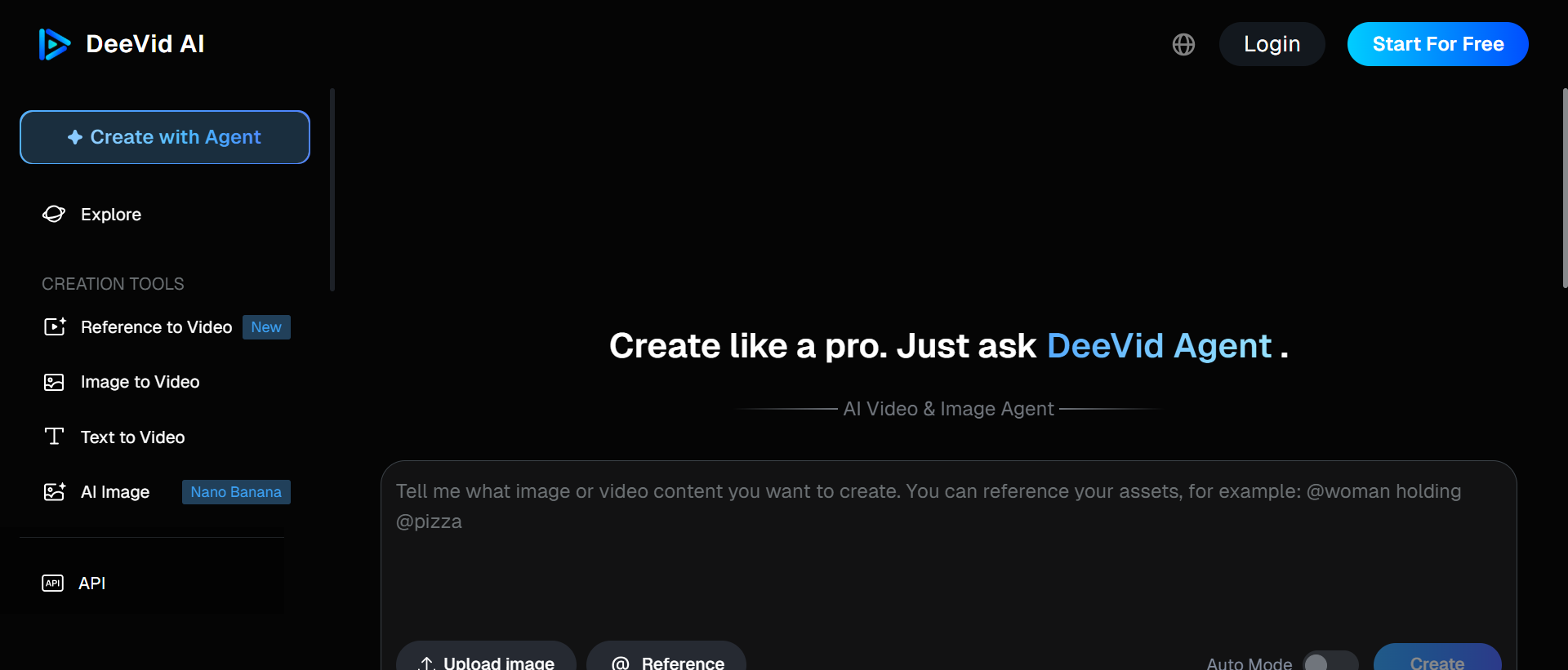
I would use DeeVid AI for quick social restyles, a cartoon pass on a vlog clip and testing three intensities of the same look.
Its video to video page restyles the clip itself. You pick a style, set how strongly it is applied, or match a look from a custom style reference. The upload box asks for MP4 or MOV under 30 seconds and under 50MB, and one account covers the desktop and mobile apps. Unlucid AI, by comparison, starts its video tools from an image or a character swap, so DeeVid is the closer Unlucid AI alternative when the whole clip needs one preset look. When that look is easier to write than to pick, an uncensored video to video maker takes it as one line.
Pros
-
Strength slider: you decide how far the style moves away from the original.
-
Style reference: an image can define the target look.
-
Apps included: the same account works on desktop and mobile.
Cons
-
Screened prompts: its content policy checks every prompt and runs checks before and after generation.
-
Menu-led: a look outside the presets needs a reference image to get close.
Best For: social creators and small teams who restyle short clips often.
Bottom Line: Use DeeVid AI when Unlucid keeps the scene and only swaps the subject, and you want one preset look across the whole clip.
3.3 GoEnhance: Best for Preset Style Transfer
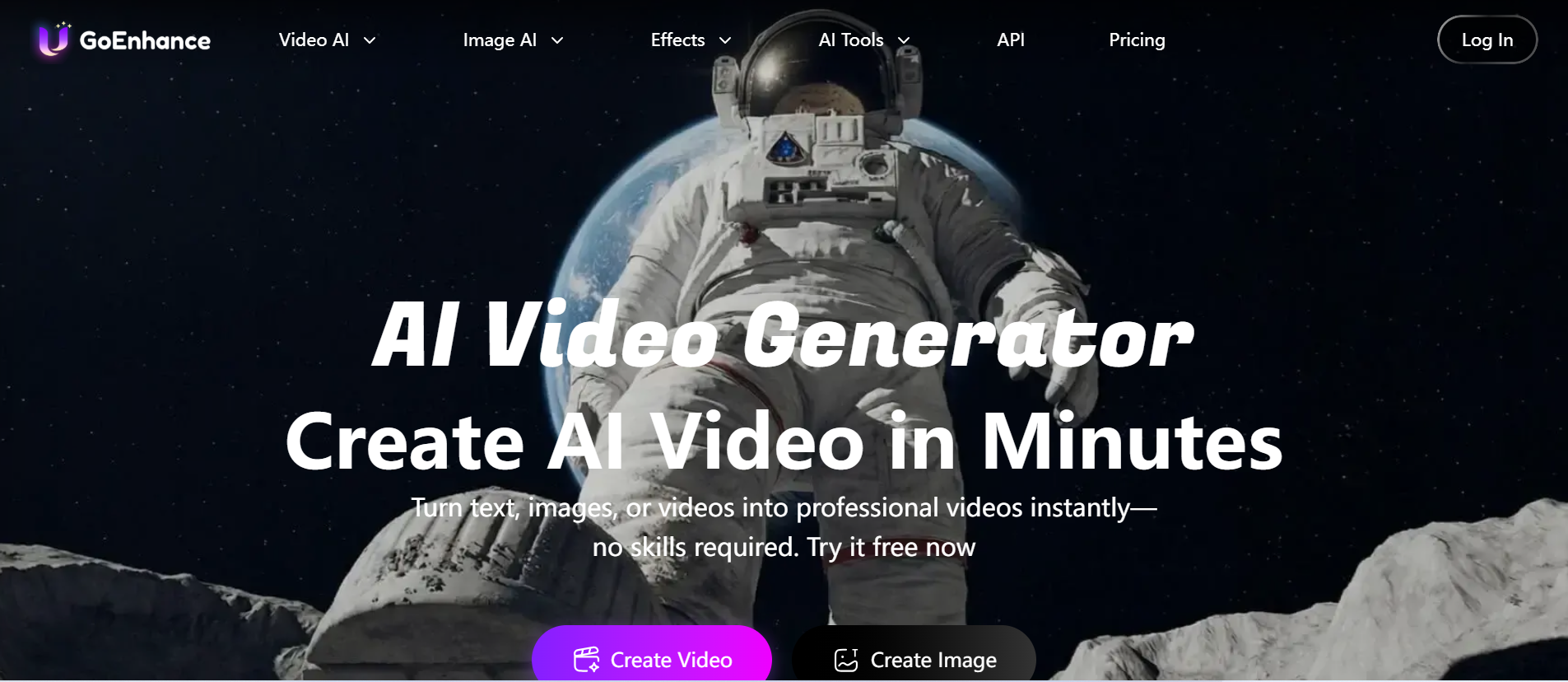
GoEnhance is a stronger Unlucid AI alternative when you want a known look on real footage in a few clicks.
Where Unlucid's 20-plus effects work on images, GoEnhance applies its presets to video: anime, clay animation, Pixar-style, Ghibli-style, pixel, pop art, knit and 3D CG looks. You can restyle only the subject and leave the background as filmed, or restyle the whole scene, and it accepts MP4 and MOV.
It fits pet clips turned into claymation, product ads where only the product gets an artistic look, and dance clips turned into pixel art. When the look you want has no preset, a written restyle gets there faster.
Why I like it
-
A wide preset menu puts many named looks one click away.
-
The subject-only option changes the person and keeps the real background.
-
Dance spins and sports moves keep their timing.
Where it falls short
-
A look outside the menu takes more prompt work.
-
Shaky or crowded clips reduce style consistency.
Good for: social creators and small brands who want a recognizable style fast.
Verdict: pick GoEnhance when Unlucid's effects are built for stills and you want presets on footage you shot.
3.4 DomoAI: Best for Anime Restyles
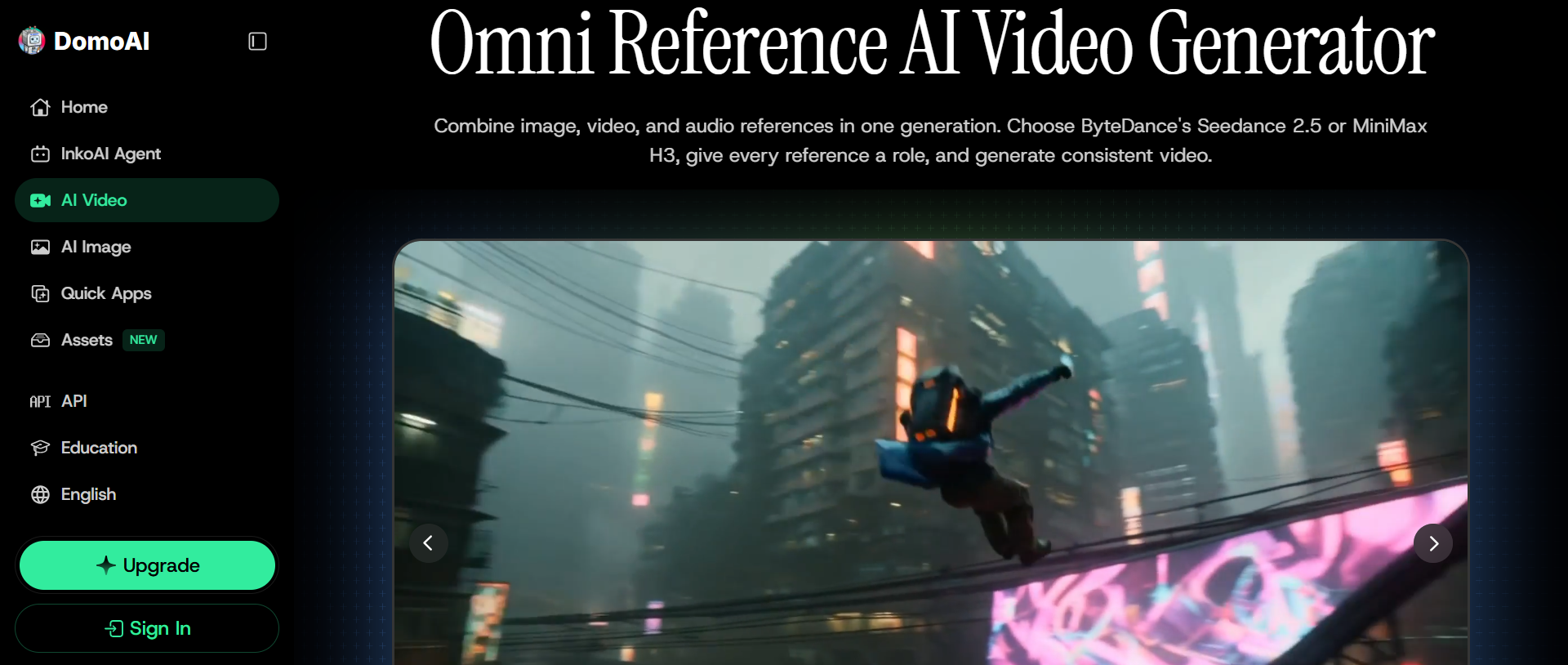
DomoAI is the better fit when the target look is anime. It lists more than 14 anime styles inside a library of 30-plus looks, and its Fusion models take a style from a text prompt or from a reference image you upload. It keeps the original motion and structure, offers 4K upscaling, and can focus the restyle on the subject only. Input and output cover MP4, MOV and AVI. Unlucid AI recasts a clip with a new character; DomoAI keeps the subject and changes how it is drawn.
I would use DomoAI for anime fan edits, Ukiyo-e style shorts and stylized music clips. For a clip where the direction itself is the hard part, Senzia's uncensored video to video AI editor keeps that direction as written.
Pros
-
Anime depth: many anime variants to compare on one clip.
-
Fusion styles: a text prompt or a reference image sets the look.
-
4K upscaling: the finished clip can be sharpened for larger screens.
Cons
-
Anime-first: realistic restyles are not its strongest side.
-
Style over story: it changes how a clip looks rather than what happens in it.
Best For: anime fans, fan-edit makers and stylized music video creators.
Bottom Line: Use DomoAI when Unlucid AI's swap changes the person and you want the same person drawn as anime.
3.5 Mage, When the Recast Goes Past One Character
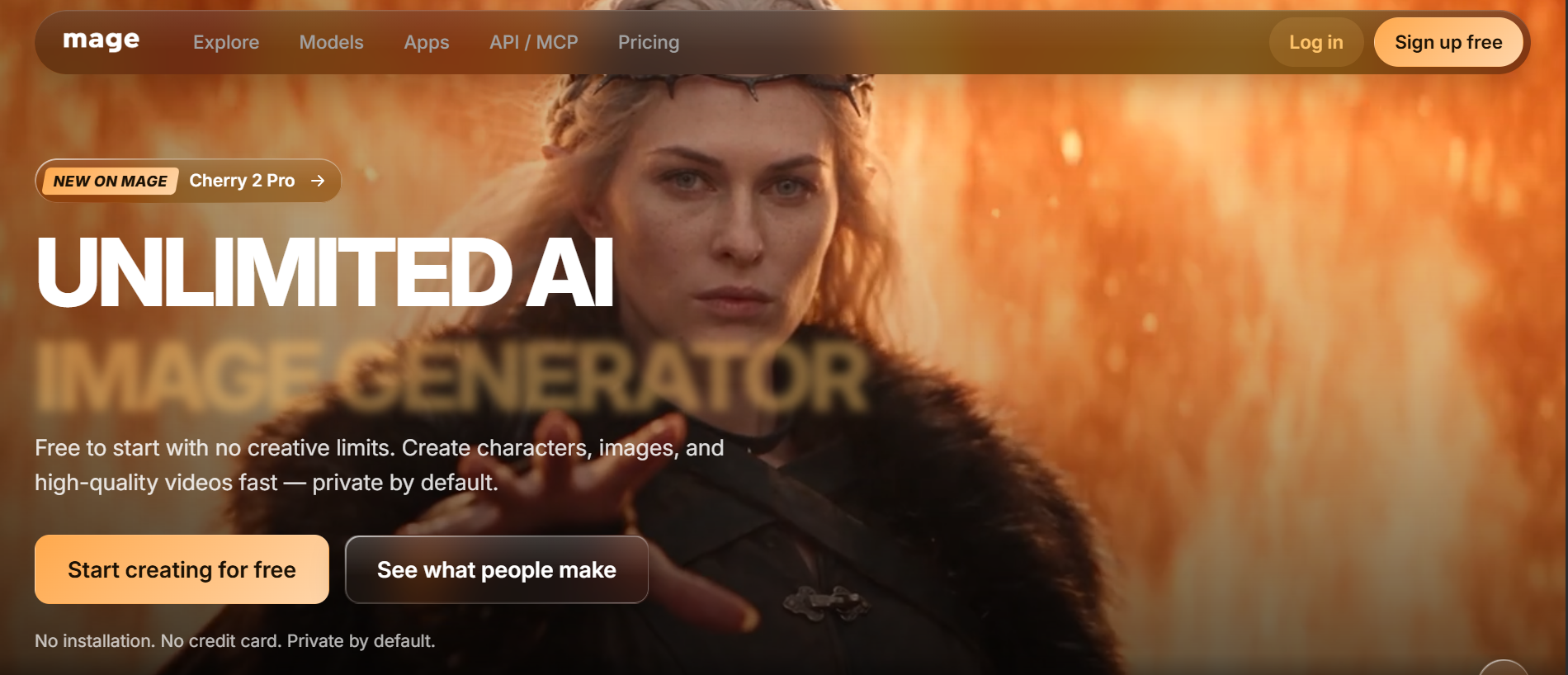
I would use Mage for AI influencer clips, product swaps in a filmed scene and short stories with recurring characters.
Its Magejutsu app keeps a clip's motion, camera and timing and recasts it with your characters, places and products, or changes one element and leaves the rest as filmed. You add a motion video of 4 to 30 seconds and up to 30 reference images, and you confirm you have permission for any likeness in it. Motion Control then moves your character the way a reference video moves. Unlucid swaps one subject; Mage can change the whole cast and the setting around it, which is why it earns a spot among these Unlucid AI alternatives.
If you only need a new look on footage you shot, an uncensored reference video to video pass keeps your original performer. I compared the two tools more closely in Senzia vs Mage.space.
What works
-
Recast, not just swap: characters, places and products can all change.
-
Many references: a large stack of images defines who or what appears.
-
Character reuse: a saved character carries across images and videos.
What to watch
-
Plan-gated extras: unlimited Motion Control sits on the top plan.
-
Permission step: every run asks you to confirm rights to the likeness.
Who it suits: character creators, AI influencer accounts and product storytellers.
The takeaway: Mage is the move when Unlucid AI's 4 to 10 second swap is too narrow and the clip needs a whole new cast.
3.6 invideo: Best for VFX Edits Inside a Full Editor
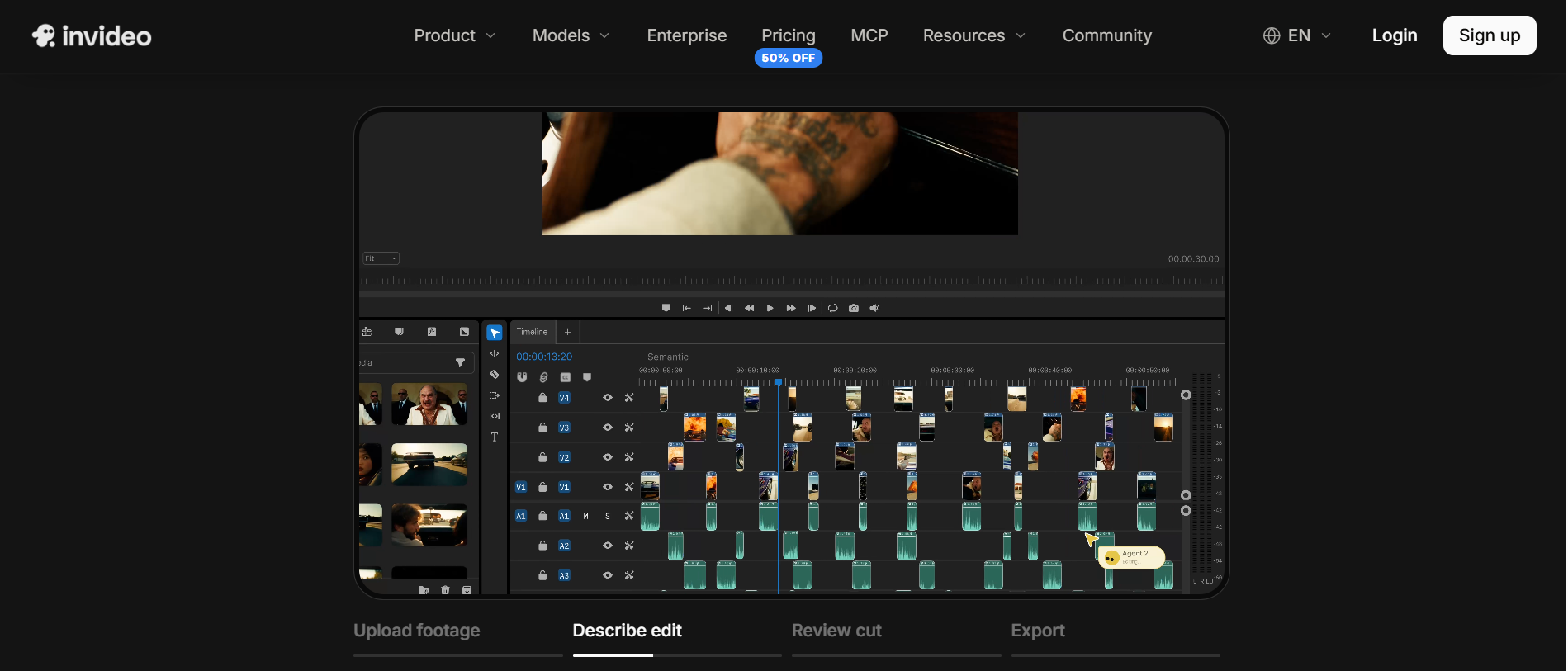
Invideo is a stronger Unlucid AI alternative when the restyle is one edit among many.
Instead of a single tool that returns a finished clip, as Unlucid does, invideo puts its VFX tools inside one editor project. Refraction restyles a whole video from a reference image or a prompt, and Re-light, Prop Swap, Re-Frame, Inpaint and Cleanup, and background removal sit beside it. The manual editor is free, while the assistant editor and the generative models use credits.
I would use invideo for campaign edits, room restyles in real-estate clips and relit B-roll. For a single clip where the direction matters more than the timeline, Senzia's uncensored AI video changer is a shorter route.
Pros
-
Restyle, relight and swap props in one project without switching apps.
-
Refraction takes a reference image or a prompt to set the look.
-
Cutting and arranging in the manual editor cost nothing.
Cons
-
One restyle may not need a whole editor.
-
The generative edits draw on credits.
Best For: marketers, editors and agencies who restyle inside a longer cut.
Bottom Line: Use invideo when Unlucid's single-clip tools feel isolated and the change has to live inside a full edit.
3.7 MakeFun, for Turning a Portrait Into a Dance Clip
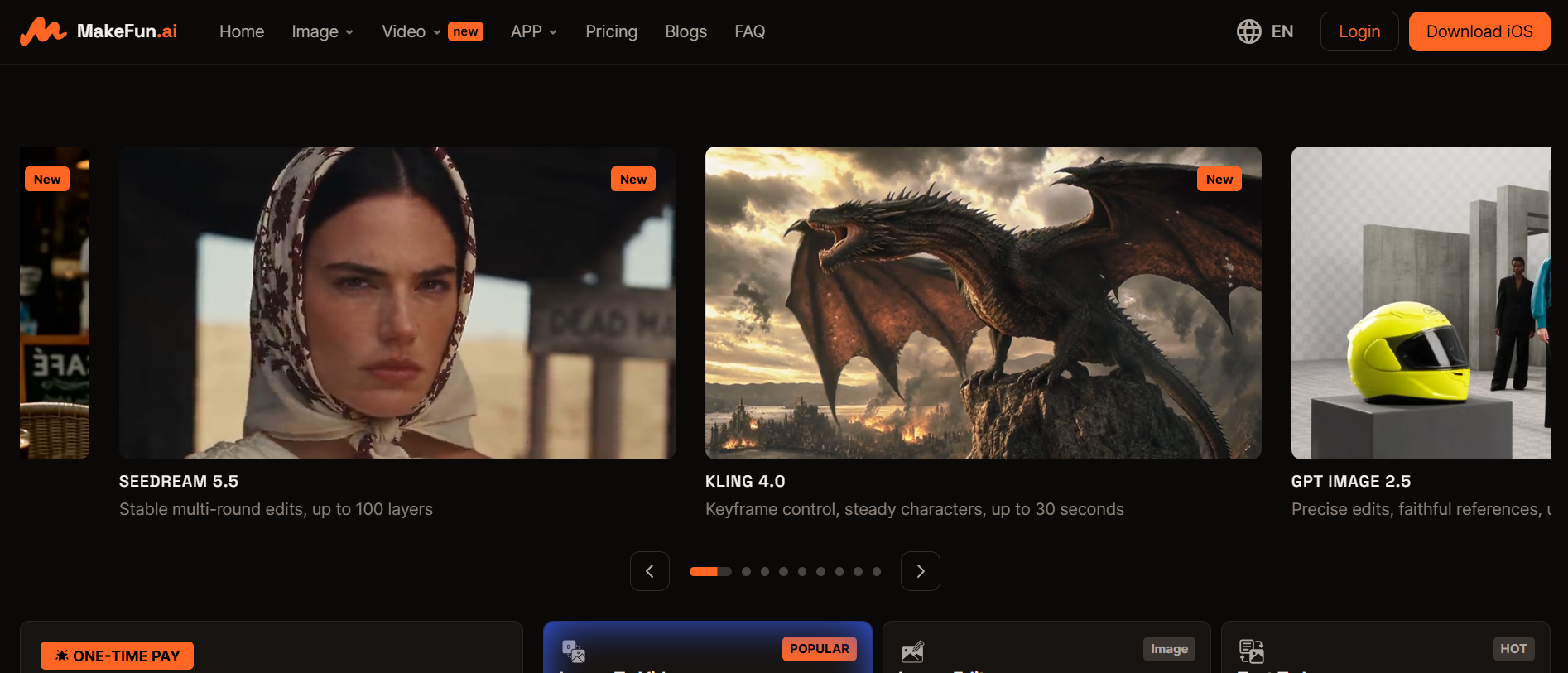
Unlucid's swap starts from a video you upload. MakeFun's Actor Animation, powered by Wan 2.2 Animate, starts from a motion template or your own motion video plus one portrait, and makes that person move like the reference. You pick or upload the motion video, upload the portrait, then preview and download. The page notes that the motion video and the photo must share the same aspect ratio.
That makes MakeFun a handy Unlucid AI alternative for dance clips from a single portrait, gesture loops and quick walk cycles. When the footage already exists and only the look should change, an uncensored video to video creator keeps your own performance instead.
Why I like it
-
Photo to motion: one portrait is enough to start.
-
Template motions: ready-made dance and gesture clips.
-
Tools around it: face swap, cloth swap and image models sit on the same site.
Where it falls short
-
Matching ratios: the photo and the motion video must share an aspect ratio.
-
Motion source matters: fast, erratic movement can blur the result.
Good for: social creators who want a dancing portrait in minutes.
Verdict: choose MakeFun when Unlucid AI needs a video you don't have and a template motion will do.
4. A Fair Way to Compare Them on One Clip
Take one short clip and one written line, and run the same checks on every tool. Each check maps to one of the reasons people leave Unlucid AI.
|
Check |
What to look for |
|
Recast or restyle |
Does the tool change who is in the shot, or how the shot looks? |
|
Your shot leads |
Do the camera path and the performance still match the original, as an uncensored reference to video workflow should? |
|
Length |
How many seconds of your footage does it accept? |
|
First run |
What do you need before the first result appears? |
|
Side by side |
Can you compare the result with the reference before keeping it? |
Senzia's uncensored restyle page is built around the second and fifth checks.
5. Matching the Right Unlucid AI Alternative to Your Job
Starting from footage you already shot, the choice depends on what should change. If the look changes and the performance stays, start with Senzia's uncensored reference video to video page. If you want a preset look with a strength slider, DeeVid AI fits, and GoEnhance offers a wider preset menu on real footage. If the look is anime, DomoAI is the specialist.
If the cast should change, Mage recasts characters, places and products. If the change belongs inside a longer edit, invideo keeps it in the timeline. And if all you have is a portrait, MakeFun's templates give it motion.
6. What I'd Actually Do
Unlucid AI stays open on my machine for one job: putting an original character inside a trending clip. Character Swap keeps the motion and the camera, and the example gallery shows which framing works before I spend gems.
Once the performance is right and only the look is wrong, I move the clip to Senzia. The uncensored video to video generator keeps the shot I filmed in charge, and its uncensored AI video transfer brings back a direction other tools stop on, so I judge a real take instead of a blocked request.
7. Using Senzia as Your Unlucid AI Alternative, Start to Finish
A restyle is usually the first step, not the last. Run the uncensored reference video to video pass on your locked cut, compare what the uncensored video to video generator returns with the source, and keep the take that matches the brief. If the new version ends too soon, the AI video extender adds new frames at the start or the end instead of looping. If the shot begins as a still, image to video gives it motion first, and the uncensored video to video AI step can restyle the result.
8. Final Thoughts
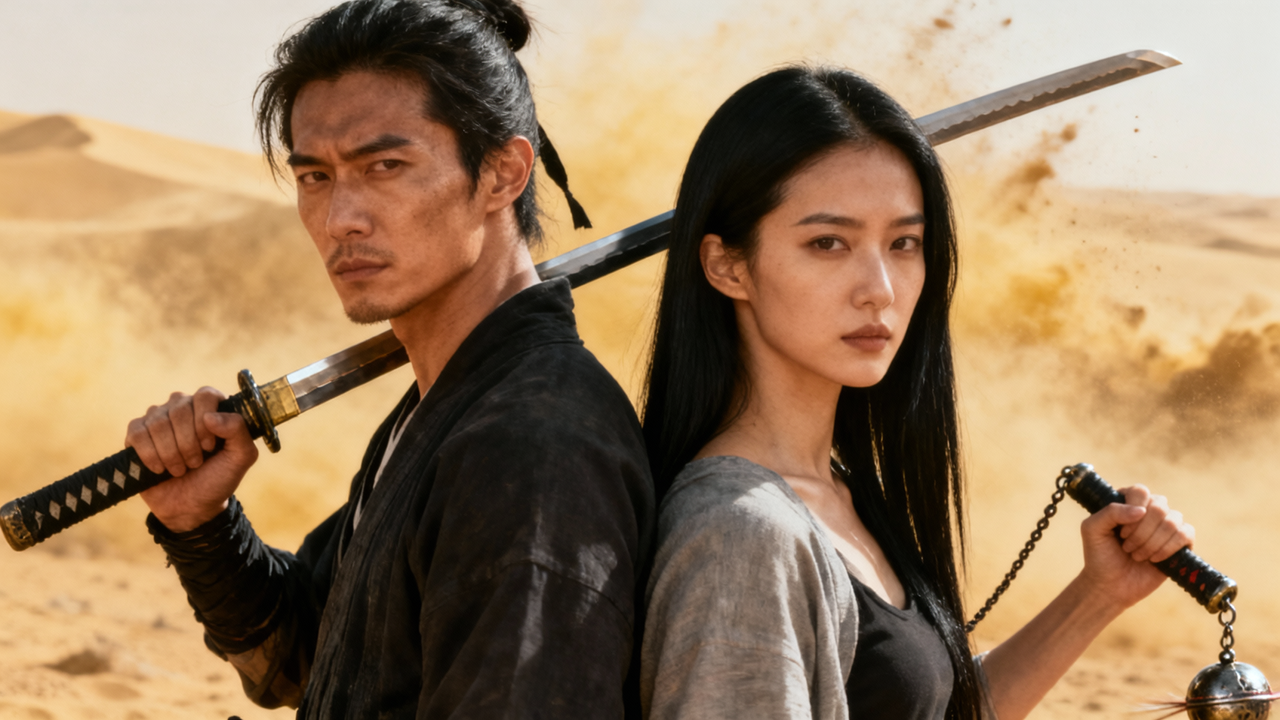
For uncensored AI video to video, Senzia is the Unlucid AI alternative I'd start with: it restyles your own clip from one written line, keeps the camera path and movement you filmed, and still returns a direction other tools refuse.
Each of the others earns its place for a narrower job. DeeVid AI covers preset restyles with a strength slider and GoEnhance covers preset style transfer. DomoAI is the anime specialist, Mage recasts a clip with your own characters, invideo keeps restyles inside a full editor, and MakeFun turns one portrait into a dance clip. Unlucid AI itself is still the easy answer for character swaps.
FAQ
What's the quickest way to test Senzia's uncensored video to video?
Pick a five-second clip with one clear action and write one line about the new setting or light. If you searched for an uncensored video to video free test, this short run shows within one take whether the camera path and the performance hold. Then move on to your full 15-second shot.
Can I use uncensored video to video online on Senzia without installing anything?
Yes. The uncensored video to video online page runs in the browser, so you upload, write the line, compare and download in one tab, and the approved take saves to your own computer.
How should I phrase the line when I restyle AI video uncensored on Senzia?
Write the new look as one clear sentence a viewer could follow on a first read. To restyle AI video uncensored well, name what changes, such as the setting, the light or the era, and leave the movement to the reference step, which follows your clip.
What happens to my original file when I use video to video AI uncensored on Senzia?
It stays in your own folder. Video to video AI uncensored work on Senzia reads your clip as the reference and returns a new take, so your source footage is never replaced.
Do Unlucid AI gems expire?
No. Unlucid's gems page says purchased gems stay in your account until you spend them, and every bundle is a one-time purchase rather than a subscription.
What kind of image works best for Unlucid's Character Swap?
Frame the character image the way the video is framed: a full-body image for full-body videos and a close-up for close-ups. If the video has several people, press Choose and draw a box around the one to replace.