8 Best OpenArt Alternatives for AI Image Generation: Pros & Cons
OpenArt is useful for consistent characters, a long menu of image models, and story projects in its Director mode. It can feel heavy, though, when all you want is to take a finished picture, fix one detail, give it motion, and post it the same afternoon.
So I compared eight OpenArt alternatives across character art, community styles, quick edits, licensed visuals and turning stills into clips. These are the ones I'd actually use, and each one is matched to the job it handles best rather than to a vague "best overall" badge.
1. OpenArt Alternatives
Senzia is my pick when the picture is only the first step. Its image to video page takes one still or a whole album, lets you describe the motion or pick a preset, and exports an MP4 to your device. You can make the still on the same site first with the AI image generator, and fix a detail before it moves, so the prompt, the picture and the clip stay in one browser tab.
OpenArt AI is still a good home for character work and model hunting. If your need is narrower, Leonardo AI suits consistent characters, SeaArt suits community art styles, getimg.ai picks the model for you, StarryAI suits stylized artwork on a free daily allowance, ImagineArt suits brand-locked team campaigns, Shutterstock AI suits licensed stock-style visuals, and Adobe Firefly suits commercially safe images.
2. 8 Best OpenArt Alternatives at a Glance
|
Tool |
Best For |
Why I'd Use It Instead |
|
Senzia |
Editing a photo and turning it into a video |
Fix the still in the photo editor, then animate one photo or an album into an MP4 |
|
Leonardo AI |
Consistent characters |
Character Reference and Elements keep a face or a style steady across new images |
|
SeaArt AI |
Community art styles |
You can remix and share work with other creators, then clean it up with filters, an eraser and an upscaler |
|
getimg.ai |
Letting the tool pick the model |
It chooses a model and rewrites your prompt, so you skip the model menu |
|
StarryAI |
Stylized artwork on a free daily allowance |
Free daily images without watermarks and a large style library |
|
ImagineArt |
Brand-locked team campaigns |
Brand Guidelines lock colors, fonts and logos for everyone on the team |
|
Shutterstock AI |
Licensed stock-style visuals |
Generated images can be licensed on the same platform you use for stock |
|
Adobe Firefly |
Commercially safe images |
Models trained on licensed and public-domain content, with Content Credentials attached |
3. Why Readers Look for an OpenArt Alternative
The first reason is rights. On the pricing page I checked on November 5, 2026, the Starter plan does not list commercial use rights, and the paid tiers list them from Plus upward. If you deliver client work, that decides which plan you need before you make a single image.
The second reason is how video is counted. OpenArt AI lists an approximate number of videos for each plan, and a note says those counts exclude Director. Video lives inside a shared credit pool rather than on a page of its own.
The third reason is plain fit. A platform built around models, characters and story tools gives you a lot to set up. People who only want one image fixed and animated for a reel usually want a shorter path.
If that shorter path is what you're after, you can edit and animate your photos with Senzia.
3.1. Senzia: Best for Editing and Animating the Photo You Already Have
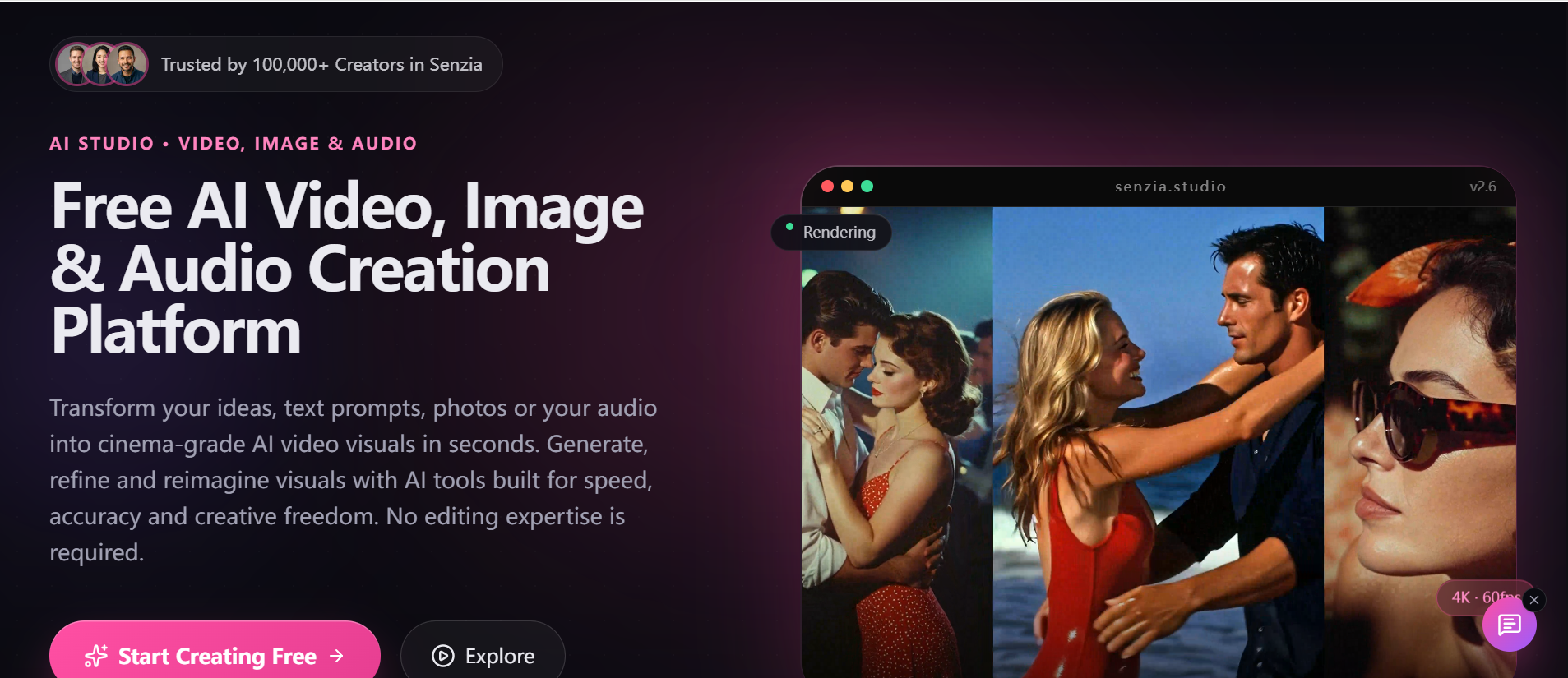
Senzia is a stronger OpenArt alternative when the image is nearly done and you want it fixed and moving.
OpenArt focuses on making images and characters, with video and Director mode sitting on top of a credit plan. This one starts from the photo. You drag in a single still or a whole album in JPG, PNG, WEBP or HEIC, write a short motion brief or pick a preset, preview the take, tune its length, aspect ratio and style, and export an MP4. The image to video page also describes an album mode that sequences many stills into a picture video with music and transitions, which is the piece I miss most when a project ends as a folder of stills.
Before anything moves, the photo editor handles the fix. You name the change in plain words, such as a new background or a stray hair removed, set how much skin texture to keep, check the result at full size, and rerun the pass on top of it if something looks off. Uploads there are not published to a gallery. If the still doesn't exist yet, the image page covers text to image and image to image, with inpainting, background swaps and a 2K upscale. When you'd rather skip the picture and start from words, text to video turns a prompt into a clip, and the motion prompt cards on the explore page set an opening frame, a move and an end frame for you.
I would use it for product shots that need a cleaner background before they move, family albums turned into a short photo to video recap, and portraits retouched and animated for a social post.
Pros
-
Fix, then animate: the photo editor and the animation page live on one site, so the corrected still goes straight into motion.
-
Album in, recap out: one photo or a whole album is enough to start a clip, with music described for album recaps.
-
Control over the take: you set length, aspect ratio and style before you export.
Cons
-
Prices sit inside the account: the pricing page explains that credits vary by model and feature but does not post plan figures.
-
One balance for everything: editing, images and video all draw on the same credits, so check the cost before a long session.
Best For: photographers, small shops and creators who already have pictures and want them polished and moving.
Bottom Line: Use Senzia when OpenArt AI feels like more setup than one fixed, animated image deserves and you need an MP4 today.
3.2. Leonardo AI: Best for Consistent Characters
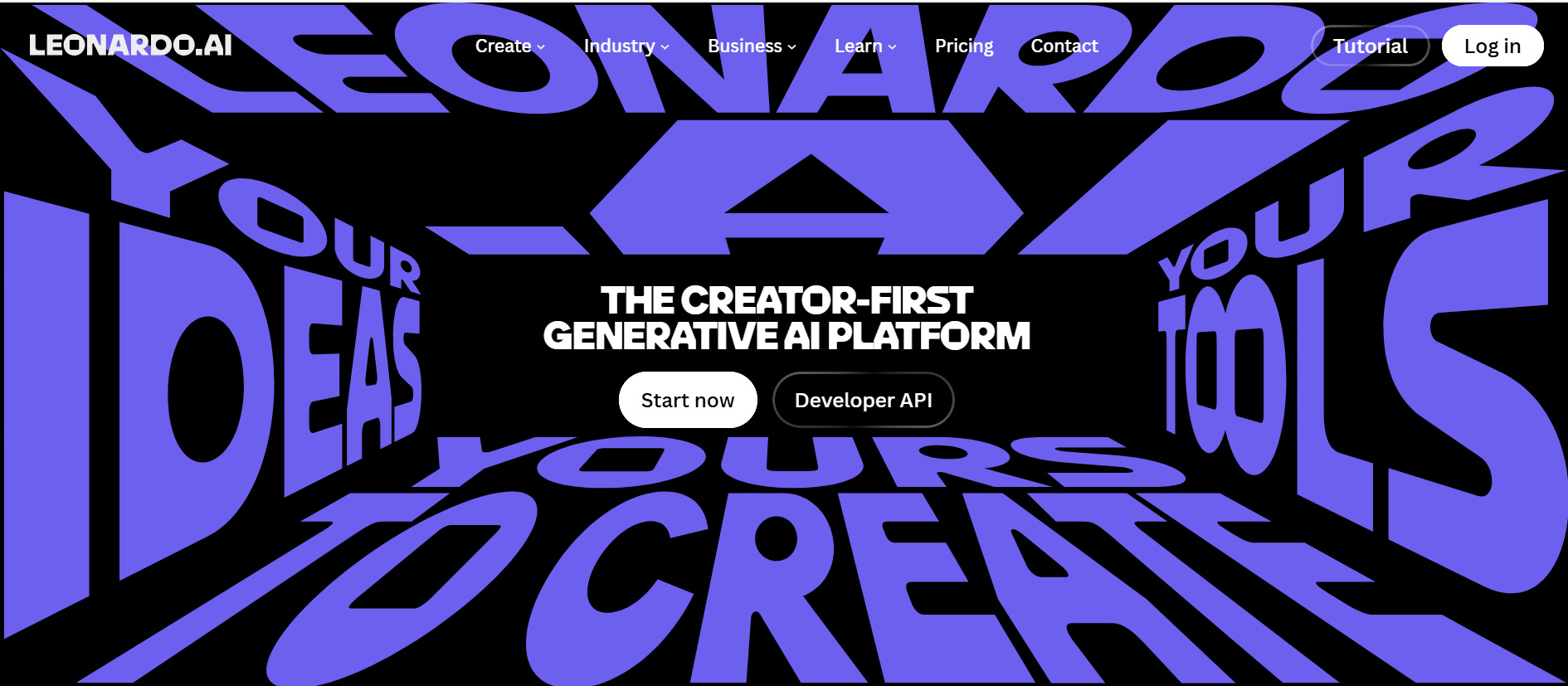
Leonardo AI is a stronger pick when one character has to look the same across a whole series.
Both platforms care about characters, but Leonardo leans on reference tools. Character Reference keeps a face steady from one image to the next, and Elements lets you train a character, a style or an object on your own images. Its Nano Banana 2.1 option accepts a large stack of reference images, and there is an image to video option when the series needs motion.
I would use Leonardo AI for comic panels, mascot sets and game concept sheets where the same hero shows up again and again. When a finished character should move in a short reel, I'd hand that frame to my top pick for character clips.
Pros
-
Character Reference: keeps a face recognizable across new prompts.
-
Elements training: teaches the model your own character, style or object.
-
Deep reference stacks: one model accepts many reference images at once.
Cons
-
Setup time: training Elements pays off for a series, less so for a single picture.
-
Character focus: if you only need one quick social image, the reference tools are more than you'll use.
Best For: illustrators, comic artists and game teams building recurring characters.
Bottom Line: Use Leonardo AI when faces drift between images and you need a cast that stays on model.
3.3. SeaArt AI: Best for Community Art Styles
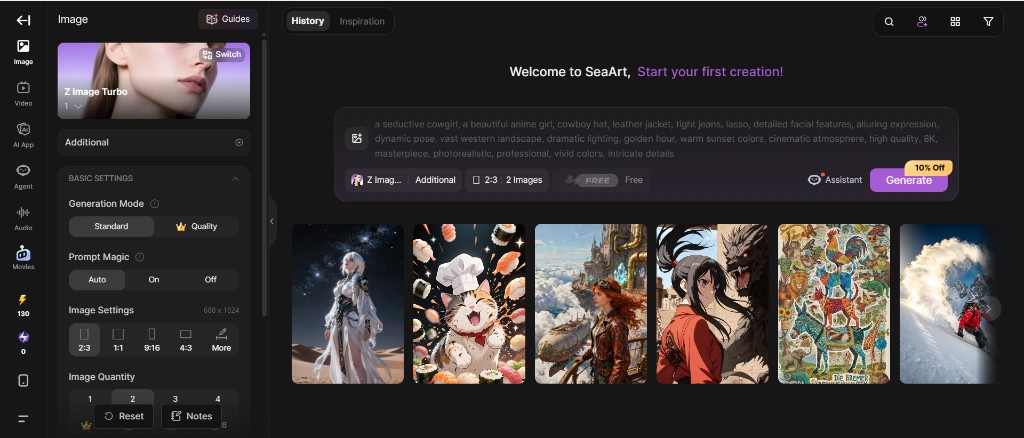
SeaArt AI is a better fit when you learn fastest by remixing what other people made.
Where OpenArt AI organizes work around models and characters, SeaArt puts the community up front: its homepage invites you to create, remix and share. You can switch between models such as Kling, Seedance and Flux, then fix the result with AI Filters, an AI Eraser and an AI Upscaler. It also offers AI video and lip sync.
I would use SeaArt AI for fan art, anime-style experiments and quick stylized portraits where a community remix gives a faster start than a blank prompt.
Pros
-
Remix culture: you can start from shared work instead of an empty box.
-
Cleanup tools: filters, an eraser and an upscaler sit next to the generator.
-
Model switching: several image and video models are one menu away.
Cons
-
Busy feed: the community side can distract when you need one asset fast.
-
Style over brief: it suits art exploration more than tight client specs.
Best For: hobby artists, fan-art creators and anyone who likes learning from other people's prompts.
Bottom Line: Use SeaArt AI when your current tool feels solitary and you want a community to remix with.
3.4. getimg.ai: Best for Letting the Tool Pick the Model
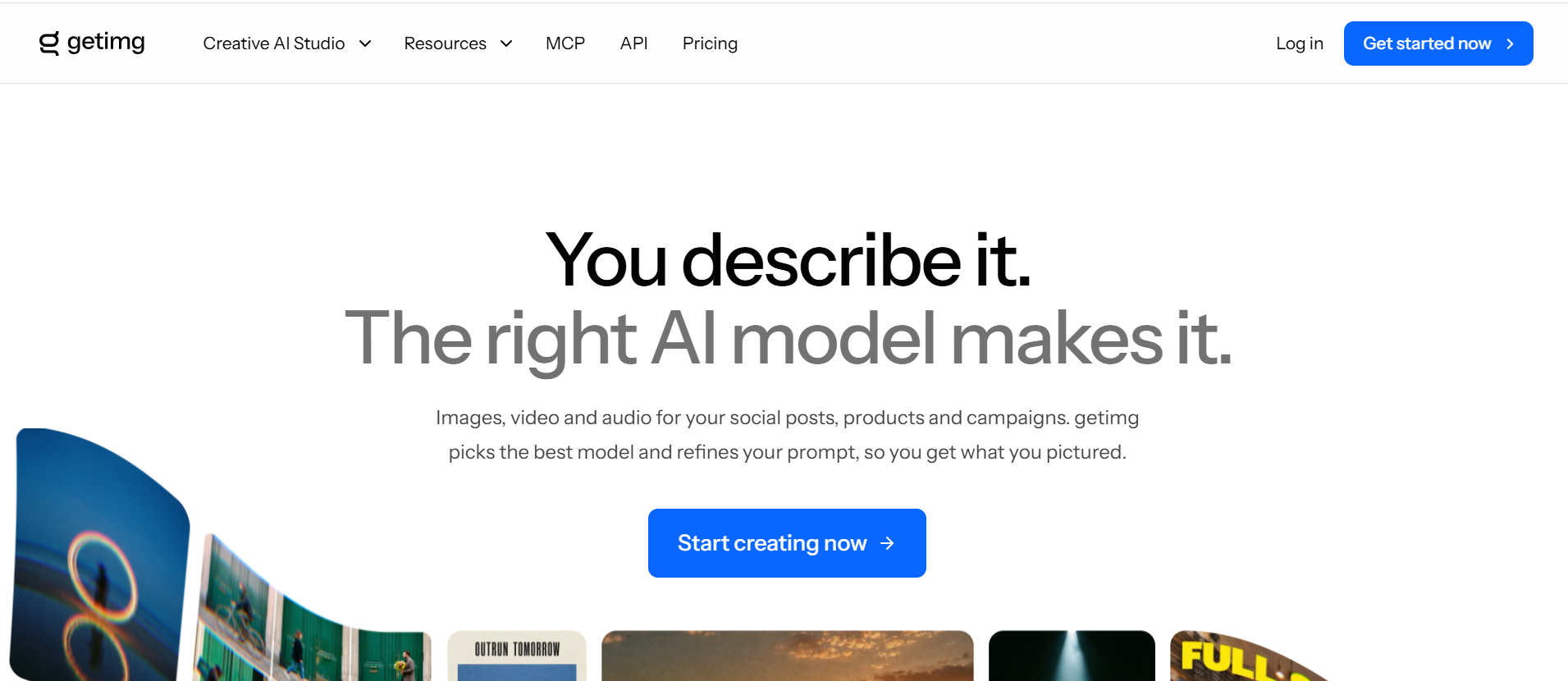
getimg.ai is a stronger choice when the model menu is the part that slows you down.
Instead of asking you to pick from a long list, getimg.ai chooses a model and refines your prompt for you. The same account covers image, video, music and speech, plus quick fixes such as upscaling, resizing, background removal and relighting. Elements help keep a subject consistent, and the plans include commercial rights.
I would use getimg.ai for headshots, UGC-style videos and product orbit shots for a store. For simple product clips built from photos you already have, the first tool on this list handles the same need from the photo side.
Pros
-
Automatic model choice: the tool decides, so you can focus on the idea.
-
Prompt help: it turns a rough prompt into a fuller one.
-
Quick fixes: resize, upscale, background removal and relight in one place.
Cons
-
Less manual control: if you enjoy choosing models yourself, the automatic pick can feel like a black box.
-
Many tools at once: image, video, music and speech in one account is more than a single-image job needs.
Best For: marketers and small shops who want a solid result without learning model names.
Bottom Line: Use getimg.ai when choosing among OpenArt's models feels like homework and you'd rather let the tool decide.
3.5. StarryAI: Best for Stylized Artwork on a Free Daily Allowance
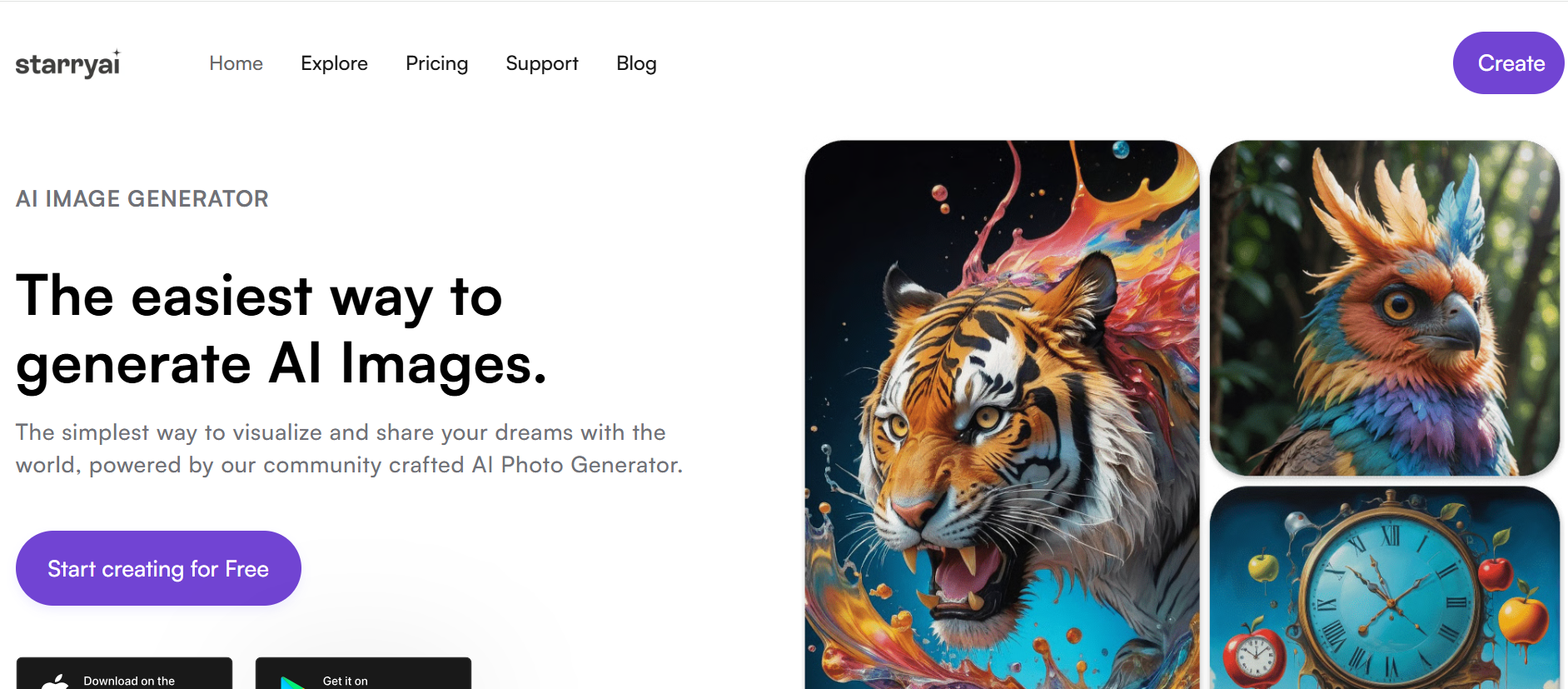
StarryAI is a stronger pick when you want to play with styles every day before paying for anything.
StarryAI gives out free images each day without watermarks, and a new account starts with a small credit balance. It offers a large style library, upscaling and background removal, plus separate pages for avatars and anime. You keep full ownership of what you make, with commercial rights included.
I would use StarryAI for profile avatars, anime wallpapers and social media graphics where the look matters more than an exact layout.
Pros
-
Daily free images: you can experiment every day without watermarks.
-
Style library: a deep list of presets gives you a look in one click.
-
Ownership: you keep full ownership and commercial rights.
Cons
-
Preset-led: tight, specific compositions take more prompt work.
-
Daily rhythm: the free allowance suits steady practice more than one big batch.
Best For: beginners, hobbyists and social creators who want styled art on a budget.
Bottom Line: Use StarryAI when a monthly plan feels like a big commitment for casual art and you want free daily practice.
3.6. ImagineArt: Best for Brand-Locked Team Campaigns
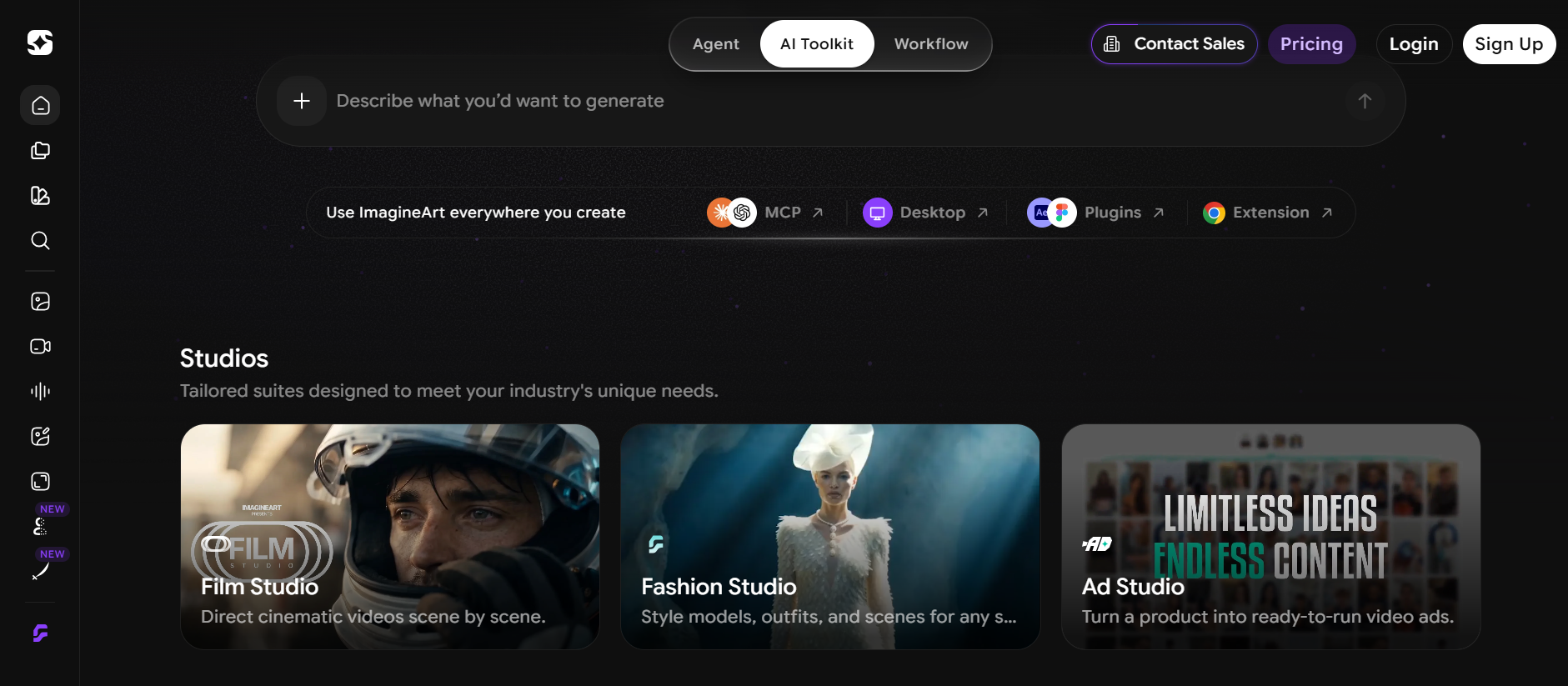
ImagineArt is a better fit when a whole team has to produce assets that look like one brand.
ImagineArt is built as a team workspace for image, video and audio, with dozens of models. Brand Guidelines lock colors, fonts and logos. The Fashion, Ad and Film studios start you inside a specific job, node workflows chain steps together, and a shared canvas lets several people work at once. Full commercial rights are included, and you can start free.
I would use ImagineArt for seasonal ad sets, fashion lookbooks and campaign marketing clips where brand rules must hold across every file.
Pros
-
Brand Guidelines: colors, fonts and logos stay locked for every teammate.
-
Job-specific studios: Fashion, Ad and Film studios skip the blank-page stage.
-
Shared canvas: several people can edit the same board at the same time.
Cons
-
Team-sized: a solo creator may not need studios, nodes and shared boards.
-
Brand setup first: you get the most from it after you load your guidelines.
Best For: agencies, in-house marketing teams and fashion brands.
Bottom Line: Use ImagineArt when OpenArt feels built for one creator and you need a whole team on the same brand rules.
3.7. Shutterstock AI: Best for Licensed Stock-Style Visuals
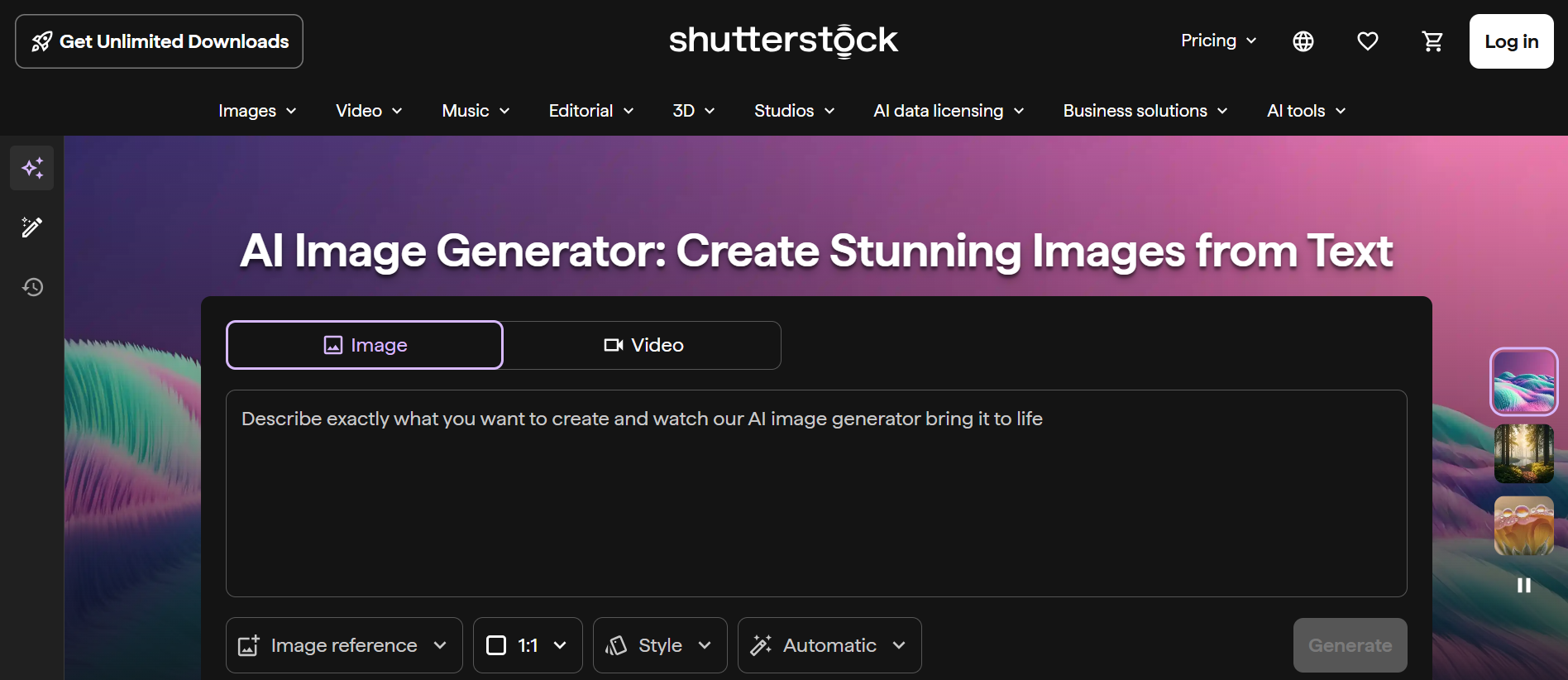
Shutterstock AI is a stronger choice when legal comfort matters as much as the picture.
Shutterstock built its AI image generator into the same platform where you search stock, design and license. The company says short phrases are enough as prompts, and it adds a style picker and support for many languages. You can polish a result in its Create editor. Shutterstock says the model was trained on data licensed from its library, contributors are paid through a fund, and Enterprise customers can request indemnification for AI images.
I would use Shutterstock AI for blog headers, slide images and campaign images that need clear licensing terms.
Pros
-
Licensing built in: generated images can be licensed where you already buy stock.
-
Short prompts: a few words are enough to get started.
-
Stock in the same place: search, generate and edit without switching sites.
Cons
-
Stock look: results lean toward polished, familiar visuals rather than experimental art.
-
Subscription logic: it makes the most sense if you already pay for Shutterstock.
Best For: marketing teams and publishers who already license stock.
Bottom Line: Use Shutterstock AI when licensing terms worry you more than style, and you need visuals with a clear paper trail.
3.8. Adobe Firefly: Best for Commercially Safe Images
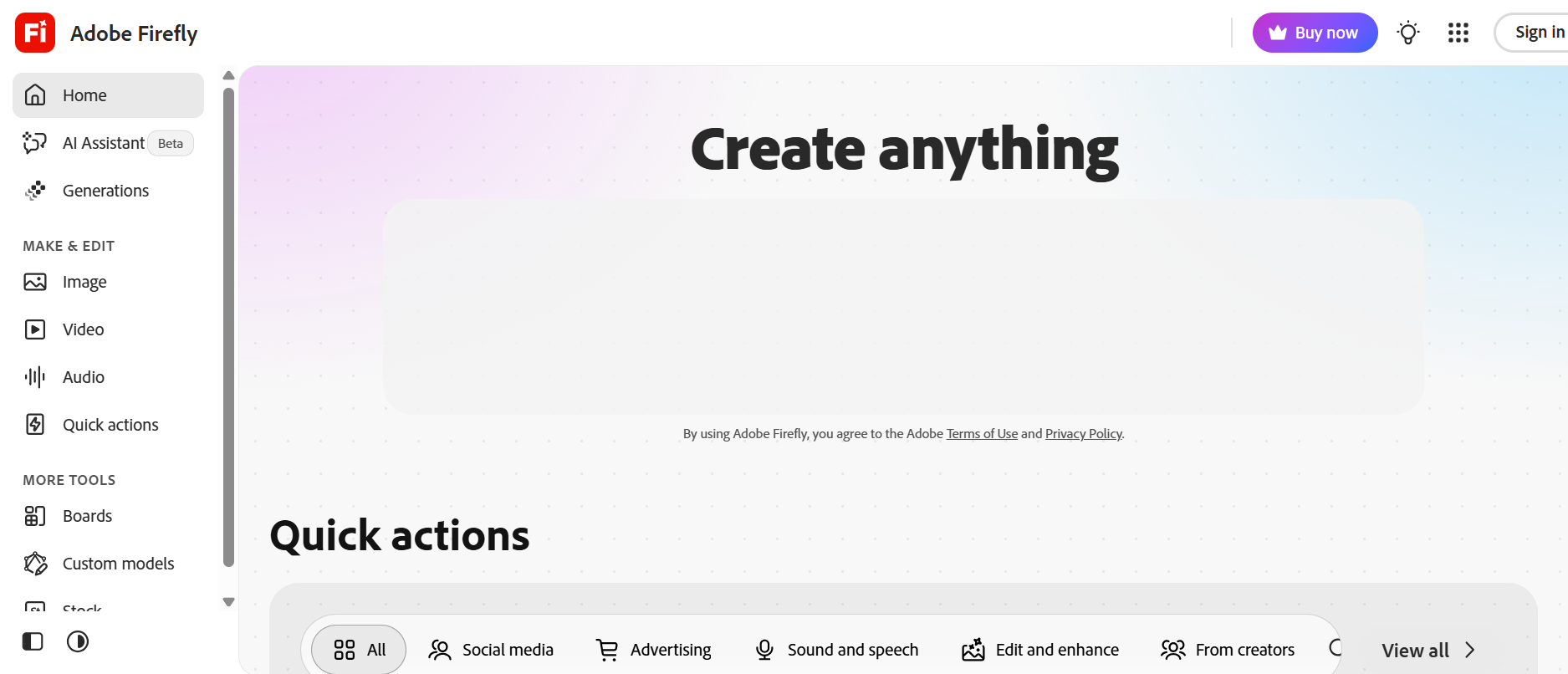
Adobe Firefly is a better fit when the image will end up in a client's design file.
Adobe trains Firefly's own models on licensed and public-domain content, and it attaches Content Credentials so others can see how an image was made. Firefly Boards help you gather and compare ideas, there are free daily generations to start, and results move into Photoshop, Illustrator or Adobe Express.
I would use Adobe Firefly for packaging mockups and brand moodboards. For the social media shorts that follow a campaign, the text to video page from my top pick is a quicker detour.
Pros
-
Commercially safe training: the models learn from licensed and public-domain content.
-
Content Credentials: an image carries a record of how it was made.
-
Adobe hand-off: results move straight into the apps designers already use.
Cons
-
Adobe orbit: it shines most for people who already work in Adobe apps.
-
Careful defaults: safety-first training suits brand work more than wild experiments.
Best For: designers, agencies and brand teams.
Bottom Line: Use Adobe Firefly when your current tool leaves open questions about training data and you need images with a clear origin.
4. How to Test These OpenArt Alternatives on Your Own Image
Run each AI image generator on one image you already like and one short prompt, then judge them on the same five points. Each point answers one of the reasons people leave.
-
Rights on your plan: check whether the plan you'd actually pay for lists commercial use.
-
From still to clip: upload the image and count the steps to a downloadable video. In my top pick that step is the AI image to video page.
-
A fix before the motion: change one detail, such as the background, and see whether the edited still can go straight into the clip.
-
Sound: check whether you can add music before you export, or have to open another app.
-
The cost of a retry: note how many credits a second take uses, and whether the download carries a watermark.
If you want a walkthrough first, Senzia has a guide on how to make the Tiny Desk AI trend from a photo, an image to video project that starts from a single still.
5. How I'd Choose the Right OpenArt Alternative
-
If you need a finished image fixed and turned into a clip, start with Senzia.
-
If one character has to stay the same across a series, choose Leonardo AI.
-
If you want to remix community work, go to SeaArt AI.
-
If the model menu slows you down, let getimg.ai choose.
-
If you want styled art every day for free, use StarryAI.
-
If a team must follow one set of brand rules, pick ImagineArt.
-
If licensing terms come first, use Shutterstock AI.
-
If the image is headed for a client's design file, use Adobe Firefly.
6. My Personal Take
I would still open OpenArt for character-heavy projects and for trying many models on one idea. Director mode is built for stories, and that is not a job I'd move elsewhere.
Once the picture is finished and the next step is a reel, a product clip or a family recap, I switch to Senzia. There, photo to video is the main job of the page, and the photo editor sits one tab away for any fix the still needs first.
7. The Best OpenArt Alternative for Image to Video Workflows
Senzia earns a second mention because it closes the loop most image tools leave open. Open the AI image generator, use text to image for a fresh still or image to image to rework one you already have, clean up a detail in the editor, then upload it on the photo to video page with a short motion brief. When the clip ends too soon, the AI video extender adds new frames at the start or the end. If you already shot footage, video to video builds a new version from that recording. When there is no picture at all, text to video starts from a sentence instead.
8. Final Verdict
The best OpenArt alternative for AI image to video work is Senzia, because it lets you fix the still, then animate one photo or a whole album and export an MP4 in the same browser.
Leonardo AI is the choice for characters that must stay consistent, and SeaArt AI is the place to remix community art styles. getimg.ai suits people who would rather not pick a model, while StarryAI suits anyone who wants stylized art on a free daily allowance. ImagineArt keeps a whole team inside one brand, Shutterstock AI gives you stock-style visuals with licensing built in, and Adobe Firefly gives designers commercially safe images with a clear origin. Pick the one that matches the job in front of you, and keep OpenArt AI for the character and story work it already does well.
FAQ
1. Can Senzia make a stylized AI image to video clip instead of a realistic one?
Yes. Senzia's AI image to video page can push the same source photo into anime, painterly, cyberpunk or noir motion, so one still can become a realistic clip or a stylized short.
2. Can I reuse a Senzia motion card as a text to video prompt in another tool?
Yes. Each card on Senzia's explore page names an opening frame, a move and an end frame, with a duration chip for 6, 10 or 15 seconds and a 9:16 chip for Reels. You can paste it into Senzia's text to video page or into tools such as ChatGPT, Gemini, Kling, Veo or Runway.
3. Can the Senzia AI image generator keep the same character across scenes?
Yes. The AI image generator lets you lock a character's face, costume and palette with reference seeds, then render that character in new poses, outfits and settings. That suits comic panels, game characters and brand mascots.
4. What can image to image change on Senzia without losing the subject?
With image to image, you upload a JPG, PNG or WEBP and change the outfit, lighting, era or art style while the subject stays recognizable.
5. Who do I contact if a photo to video export on Senzia goes wrong?
Write to support@senzia.cc, the contact address Senzia lists on its pages. It covers photo to video projects and every other Senzia service.